
Claude AI for Business: What Leaders Should Know
Your leadership team doesn’t need another “AI chatbot” to play with. You need a tool that turns everyday work—emails, spreadsheets, training plans, slides, and even website experiences—into finished output your business can actually use.
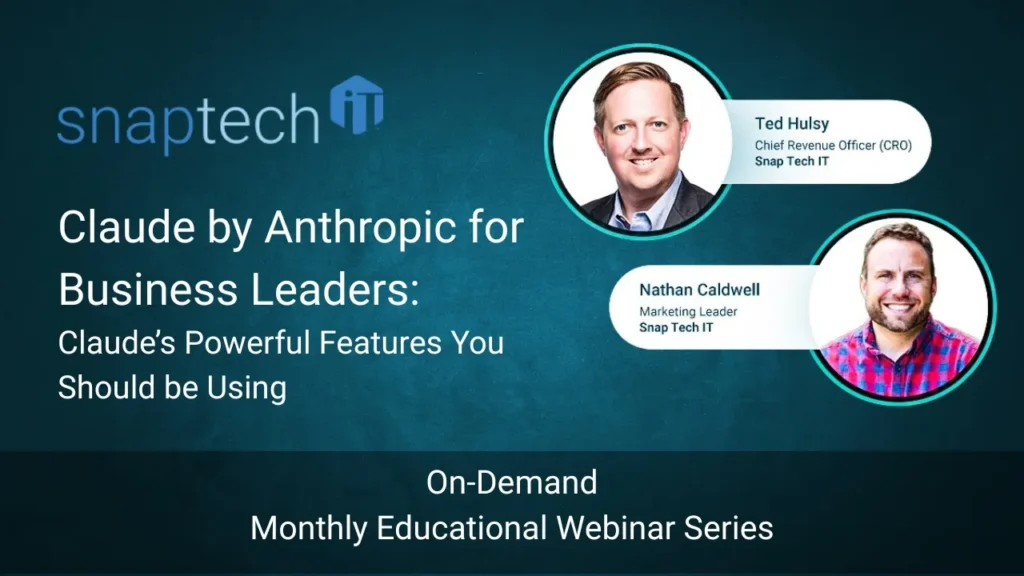
That’s why Claude by Anthropic is getting so much attention. In a recent Snap Tech IT session, we focused on Claude through the lens that matters to small and mid-sized organizations: practical productivity for CFOs, operations leaders, sales leaders, and marketing teams—not “AI for software developers.”
Below are six of the most common questions leaders ask when they’re deciding whether Claude belongs in the business toolkit.
What is Claude by Anthropic, and why are business leaders paying attention?
Claude is an AI assistant designed to help people think, write, analyze, and build. The difference leaders notice quickly is that Claude often “finishes the job,” not just the paragraph.
Instead of handing you raw text that still needs formatting, Claude can generate outputs that look and feel closer to what you’d hand to a client, a board, or a team. That’s a big deal when your bandwidth is the constraint—and for most leadership teams, it is.
How is Claude priced, and which plan makes sense for a team?
Claude offers multiple tiers—Free, Pro, Max, Team, and Enterprise. For many small and mid-sized organizations, the “Team” tier is the practical starting point because it’s built for shared work and collaboration (Team tier pricing is listed at $25 per seat/month billed annually on Claude’s pricing page). (Claude)
The key point isn’t which tier is “best.” It’s whether your leaders can use Claude enough to justify the seat cost. If your CFO saves 2–3 hours per month on reporting cleanup, that math usually works out quickly.
How does Claude’s chat output stack up?
With Claude’s chat, a simple prompt, requesting an AI training program, produced a polished, printable AI training document. A similar request in ChatGPT would merely spit out text that would require you to copy into Word and format from scratch. Not so with Claude! Also, with Claude, when you want changes, you don’t edit manually—you just say what you want changed, and Claude updates the
For leaders, this is where AI stops being “interesting” and starts being useful.
What are Claude “Artifacts,” and why do they matter?
Artifacts are one of Claude’s most business-friendly features: they let Claude produce shareable, structured outputs—like creating apps and websites, documents, games, creative projects, visual layouts, and productivity tools. (Claude Help Center) While Claude Artifacts output is very sophisticated, how you interact with it doesn’t have to be. Claude is skilled at understanding natural language and non-technical requests and transforming them into polished and complex deliverables. And again, if it’s not exactly what you want, you don’t need coding skills to edit. Just tell Claude what you want changed, and Claude updates the artifact.
This is exceptionally powerful for people either looking to save a lot of coding time or for those who can’t code to begin with.
Can Claude connect to Microsoft 365 and the apps we already use?
This is where most AI rollouts succeed—or stall.
Claude supports “Connectors,” which let it work with the tools you already run the business on. The goal is simple: reduce the copy/paste circus and let the AI pull context from where your work already lives.
When connectors are configured correctly, Claude can draft communications with real context, reference internal files, and support workflows that otherwise take too many steps.
Does Claude work well with PowerPoint?
Claude truly shines for PowerPoint users. In Claude’s chat, you can ask Claude to design a PowerPoint slide on anything and Claude will:
- Research the information and include it in the design build.
- Create a slide that is actually a .pptx file. (Other AI tools will merely create an image with pptx dimensions or provide you with plain text you’ll have to format into a PowerPoint slide.)
Claude is a clear winner for producing usable and visually appealing PowerPoint slides with plain language prompts. Claude’s powerful advantage is also in giving you the flexibility to manipulate any piece of the slide for proper formatting, branding, or even update text for accuracy.
How can Claude help inside Excel (budgeting, modeling, reporting)?
This is the one that makes finance and ops leaders lean in.
Claude can be used inside Excel to analyze data, create structures, and build reports without you having to manually wrestle formulas and formatting. Anthropic’s own documentation highlights Claude in Excel and how it can work with connectors to bring in relevant context. (Claude Help Center)
While Copilot is still trying to find their wings in Excel, Claude has really excelled (Puns were BOGO this week. #SorryNotSorry)! Claude can take messy, real-world data (like an expense log) and turn it into a usable monthly budget view, complete with organization and visuals—exactly the kind of “someone has to clean this up” work that steals hours from leadership teams.
Microsoft also notes scenarios where Claude can be used with Excel’s agent-style workflows in commercial environments. (Microsoft Support)
Is it safe to connect Claude to company files and email?
AI doesn’t remove security responsibilities—it increases the need for good guardrails.
The safe path looks like this:
- Use the right business-grade plans and configurations
- Apply least-privilege access (Claude shouldn’t see what the user shouldn’t see)
- Get your data governance in order (permissions, sharing, retention)
That’s how you build trust and do the right thing with AI—so it solves problems instead of creating new ones
Next steps: make Claude useful in 30 days
If you want Claude to drive measurable productivity (not just curiosity), pick 2–3 repeatable use cases:
- A leadership-ready one-page summary format (for meetings)
- A “turn messy data into a usable spreadsheet” workflow
- A marketing or sales artifact (FAQ builder, interactive calculator, slide creation)
Then document what “good” looks like and roll it out intentionally.
Want help building a safe, practical AI rollout for your leadership team—especially around Microsoft 365? Schedule a call with Snap Tech IT. We’ll map the right use cases, the right guardrails, and guide your team to adopt powerful AI skills.
Want help building a safe, practical AI rollout for your leadership team?
Schedule a meeting with Snap Tech IT. We’ll map the right use cases, the right guardrails, and guide your team to adopt powerful AI skills.
Watch the full webinar here:

Nathan Caldwell
Marketing, Snap Tech IT